Within many organizations, new Teams and SharePoint sites are created regularly for projects, departments, collaborations, or temporary working groups. But what happens to these workspaces once a project is completed or a team is no longer used?
Often, they simply continue to exist. As a result, the digital work environment keeps growing, making it harder to maintain an overview. With proper lifecycle management, you ensure that workspaces are not only created correctly but are also managed, monitored, and eventually cleaned up. In this blog, you will read how to maintain control over the full lifecycle of Teams and SharePoint sites.
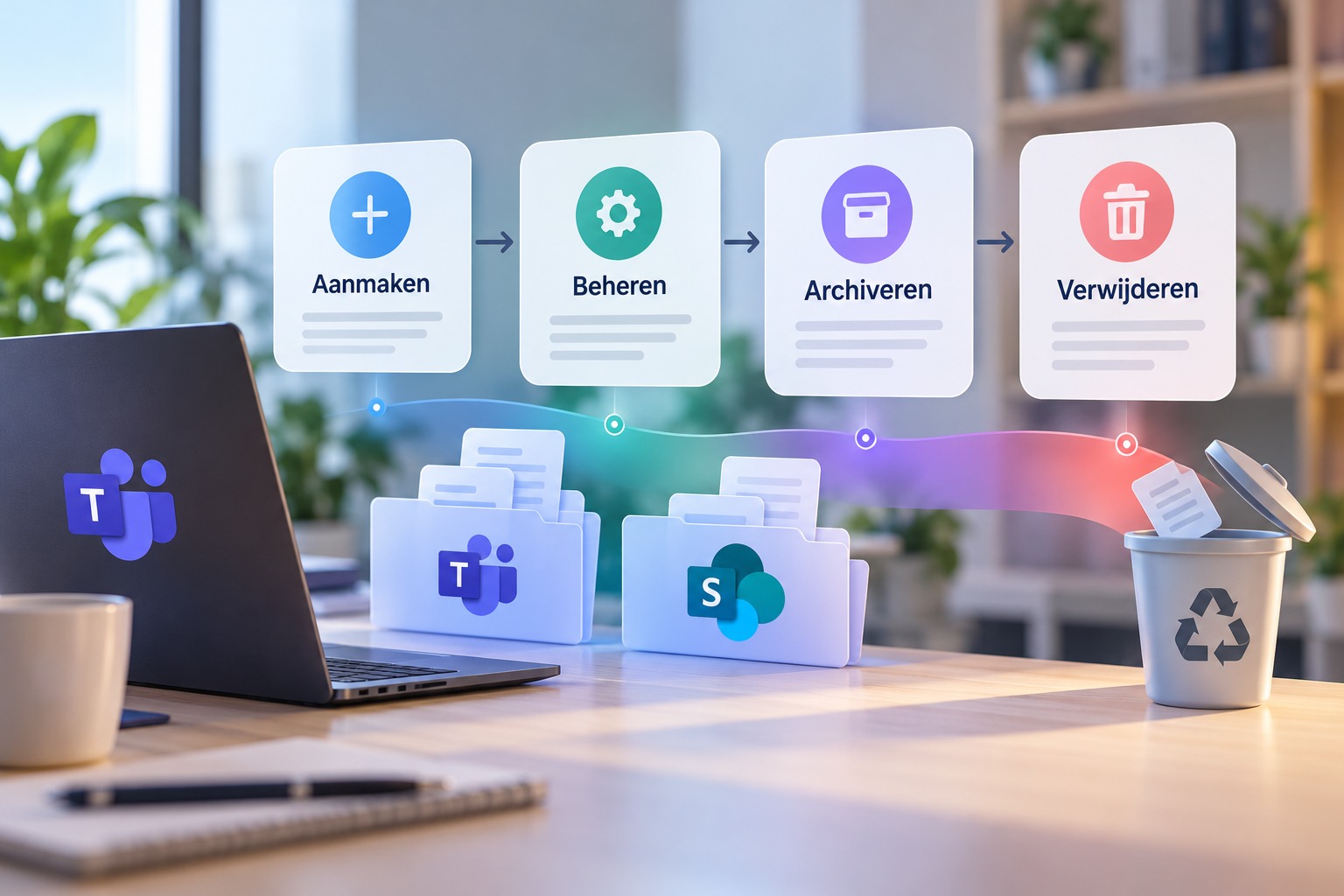
Lifecycle management is about managing the entire lifecycle of a digital workspace, from the moment a Team or SharePoint site is requested until the moment it is archived or deleted. In practice, the focus is often primarily on creating new workspaces. Employees want to collaborate quickly and create a new Team or SharePoint site for that purpose. However, without clear agreements on management, more and more environments emerge over time where no one knows exactly who is responsible, whether they are still being used, or what information they contain.
By properly organizing lifecycle management, you prevent Teams and SharePoint sites from existing unmanaged. You ensure a clear structure, up-to-date access rights, and a digital work environment that remains organized.
Lorem ipsum dolor sit amet, consectetur adipiscing elit, sed do eiusmod tempor incididunt ut labore et dolore magna aliqua. For indeed, to the least extent, who would not engage in such labor, except to achieve some benefit from it? But the pain of this is that it is not intended to be a source of pleasure; those who abandon their duties are to blame, for they have weakened the spirit, which is the very essence of labor. Excepteur sint occaecat cupidatat non proident; those who abandon their duties are at fault, for they have weakened the spirit—that is, the labor.
Proper organization starts with the request for a new workspace. Who is allowed to create a Team or SharePoint site? What name will the environment be given? Who will be the owner and which employees will be granted access? When everyone can create workspaces without clear agreements, duplicate Teams, unclear names, and different ways of working quickly arise. That is why it is important to standardize the request process.
With a standardized request process, employees can easily request a new workspace while settings, rights, and structure are determined in advance. This way, every new workspace starts with a solid foundation.
Once a Team or SharePoint site has been created, daily management begins. Employees come and go, projects change, and access rights must be adjusted regularly. A workspace that was set up correctly at the start may no longer be so a year later. Therefore, it is important to periodically check whether workspaces are still actively used and whether the right people have access. It must also remain clear who is responsible for management.
Consider, for example, a project team whose original owner has since left the company. Without a new owner, the workspace remains unmanaged. By performing regular checks, you prevent these types of situations from going unnoticed.
Not every workspace needs to remain active forever. When a project is completed or a collaboration ends, it is wise to assess what should happen to the environment. Sometimes a Team still contains valuable documents that employees may need later. In that case, archiving is a better choice than immediate deletion. The information remains available according to the agreements made, while the workspace is no longer actively used.
It is important to distinguish between archiving a Team and preserving the associated information. An archived Team is not automatically the same as a fully archived SharePoint site. Which approach is suitable depends on your organization’s setup and retention policy.
Some workspaces are simply no longer needed. Think of temporary Teams for events, completed projects, or test environments that haven’t been used for months. By deleting these environments in a timely manner, you prevent Microsoft 365 from becoming increasingly cluttered and disorganized. But deletion must, of course, be done carefully. You want to prevent important documents or information from being lost.
Therefore, it is wise to make clear agreements in advance about retention periods, responsibilities, and approvals. For example, have the owner of a workspace confirm that it is no longer needed and check whether the information may be deleted according to the applicable retention policy.
That is perhaps the most important question. Because when no one is responsible for management, often nothing happens at all. In many organizations, technical responsibility lies with the IT department, while substantive responsibility belongs to the owner of a Team or SharePoint site. After all, IT cannot always judge whether a project has actually been completed and which documents are still important.
That is why lifecycle management works best when responsibilities are clearly divided. The owner assesses whether a workspace is still needed, and IT ensures the correct setup, security, and technical support. Furthermore, it helps when owners automatically receive a notification as soon as their workspace has been inactive for a longer period. This way, they do not have to constantly check for themselves which Teams and SharePoint sites might need to be cleaned up.
Manually checking all Teams and SharePoint sites takes a lot of time, especially when your organization has hundreds of workspaces. Fortunately, you don’t have to manage this all manually. With Workspace Assistant 365, I4-YOU helps organizations bring more structure and control to the management of Microsoft 365 workspaces. By standardizing and, where possible, automating processes around requesting, setting up, and managing workspaces, management becomes much easier.
This prevents new workspaces from being created without clear agreements and allows you to make lifecycle management part of a structured way of working—from the initial request to the periodic assessment of existing environments.
An organized digital workplace does not happen by itself. It requires more than just a good setup at the start. By also paying attention to the management, archiving, and deletion of workspaces, you prevent Teams and SharePoint sites from continuing to pile up.
Do you want to gain more control over the management of your Microsoft 365 environment and prevent old workspaces from being left unmanaged? Discover what Workspace Assistant 365 can do for your organization or contact us for personal advice. We would be happy to help you!